Tasks & Automation
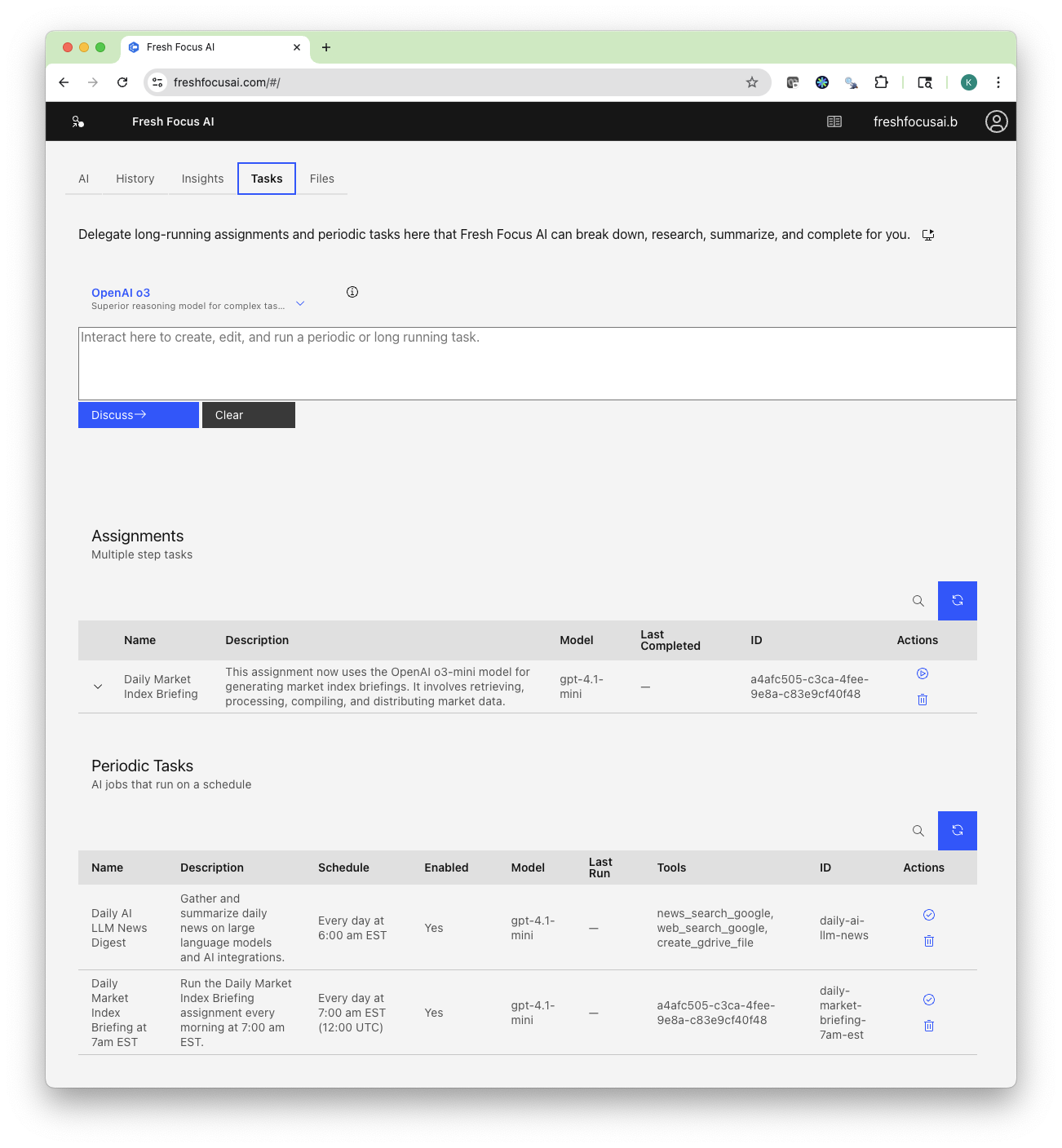
Turn great prompts into repeatable workflows. The Tasks page has two automation layers that work together:
2-Minute Tour
A quick walkthrough of Assignments and Periodic Tasks—how to draft, run, and schedule automations.
The Tasks page has two automation layers that work together:
| Layer | When to use |
|---|---|
| Assignments | Complex, multi-step pipelines that can search, analyze, transform, and publish to multiple destinations. |
| Periodic Tasks | Anything that should run on a schedule (hourly, daily, weekly)—either an Assignment or a single-pass job. |
Quick start
- Open Tasks.
- In the Tasks AI prompt, describe what you want automated.
- Review the generated Assignment (expand to see each step).
- Click Run once to test, or Schedule it in Periodic Tasks.
Tip
Tasks assume Eastern Time by default. Include a timezone in your schedule text to override (e.g., 07:00 PT).
The Tasks AI
The Tasks AI drafts workflows from plain English. It can: - Create Assignments with clear steps and tool usage - Convert an Assignment into a Periodic Task schedule - Edit steps, change models, or add/remove outputs - Generate filenames and summaries that include today’s date
Good prompt examples
Create a "Daily Market Index Briefing" that:
- fetches live Dow, Nasdaq, S&P prices,
- gathers top AI/markets news + Reddit sentiment,
- exports Markdown (Files), HTML (Google Drive), ENML (Evernote),
- emails the full brief and SMSes a 2-line summary,
- include today’s date in each filename (YYYY-MM-DD).
Schedule on weekdays at 07:00 ET.

Every morning at 06:00 ET: produce a 10-minute AI news digest with links.
Save HTML to Google Drive, email me the full report, SMS a summary.
Assignments (multi-step workflows)
An Assignment is a named pipeline with ordered steps. Typical steps include:
- Search & Collect – web/news/reddit lookups, MCP tool calls
- Analyze & Summarize – reasoning models produce briefs, tables, or checklists
- Transform – convert to Markdown, HTML, or ENML
- Publish – Save to Files, Google Drive, Evernote, Email, SMS
- Integrations (MCP) – call connected tools (e.g., Google Calendar, Sheets)
Create a long-running Assignment
Ask the Tasks AI:
Create an assignment to collect daily market index prices + news,
format as Markdown, HTML, Evernote, then email + SMS me the results.
You’ll get a 10-step pipeline you can Run or Schedule immediately.
Expand the row to see each step’s inputs, tools, and expected output.
Execution controls (row actions)
- Run – execute the entire assignment
- Run Step – execute a single step for debugging
- View – open the formatted output for the last run
- Debug – inspect the raw AI / tool trace
- Edit – adjust prompts, tools, or the model
- Duplicate / Delete – clone or remove the assignment
Note
You can switch the model for the whole Assignment before running (e.g., fast vs. deep-reasoning). For complex research, pick a reasoning-heavy model; for quick summaries, pick a fast model.
Periodic Tasks (scheduling)
A Periodic Task runs: - an entire Assignment on a schedule, or - a single-pass job (no Assignment) generated from a one-shot prompt.
Examples
- “Run Daily Market Index Briefing every weekday at 07:00 ET.”
- “Every day at 06:00 ET, generate a 10-minute AI/LLM news digest with links. Save to Drive (HTML) and email me.”
Once saved, the schedule appears in Periodic Tasks with: - Enabled toggle - Next run time - Last run time / summary - Run Now / Edit / Delete
Tip
Need a different cadence? Use natural phrases like “first business day each month at 08:30 ET” or “every 2 hours from 9–5 PT on weekdays.”
Common recipes
1) Daily Market Index Briefing
- Inputs: Live prices (Dow, Nasdaq, S&P), top finance/AI headlines, Reddit sentiment
- Outputs: Markdown (Files), HTML (Google Drive), ENML (Evernote), Email, SMS
- Schedule: Weekdays 07:00 ET
- Why: A single morning brief across channels, ready on phone and desktop
2) AI News Digest (single-pass)
- Inputs: Top LLMs, agents, integration tech; links & 10-min read
- Outputs: HTML (Google Drive), Email, SMS summary
- Schedule: Daily 06:00 ET
- Why: Fast, one-shot digest (no multi-step pipeline required)
3) Calendar + Report (MCP)
- Inputs: New “Weekly Review” brief from your History and Files
- Steps: Summarize → format Markdown/HTML → email + Drive
- MCP Action: Add a Google Calendar event for Friday 4:00–4:30 PM with a Drive link
- Schedule: Fridays 08:00 local time
Best practices
- Prototype first: Run once, inspect View and Debug, then schedule.
- Keep steps atomic: Easier to debug and swap models/tools per step.
- Be explicit: Tell the AI the audience, length, format, and destinations.
- Date in filenames: Ask for
YYYY-MM-DDor ISO dates to keep runs organized. - Guardrails: For sensitive topics, ask the AI to include assumptions and sources.
Working with MCP integrations
Assignments and single-pass tasks can call MCP tools you’ve connected (e.g., Zapier’s Google Calendar/Sheets).
Use phrasing like:
After saving the report to Drive, create a 60-minute Google Calendar event tomorrow at 9:00 AM titled “Market Review”
and attach the Drive link. If the event already exists, update it.
See Integrations for connecting MCP providers.
Monitoring & outputs
- Last run summary shows status at a glance.
- View opens the latest formatted artifact (Markdown/HTML/ENML).
- Artifacts saved to Files can be previewed instantly; Drive/Evernote/Email/SMS go to their destinations.
Tip
Want a permanent archive? Save Markdown to Files on every run—even if you also publish to Drive/Evernote.
Troubleshooting
A run failed on a specific step
- Click Debug on that step to view the raw trace and tool output.
- Re-run just that step with Run Step after editing its prompt.
Nothing happened at the scheduled time
- Ensure the Enabled toggle is on.
- Confirm timezone in your schedule text.
- Verify connected integrations (Email/Drive/Evernote/SMS) are authorized.
Outputs look generic
- Add constraints: audience, tone, length, structure, and must-include sections.
- For research, request sources with links and assumptions.
Rate limits or tool errors
- Switch to a lighter model for high-frequency tasks.
- Add retries or reduce the number of simultaneous destinations.
Privacy & safety
- Tasks use only the accounts and notebooks/folders you authorize.
- You control what’s stored in Files and which exports are sent externally.
- Disable or delete any Task at any time.
Related pages
- AI (Main Tab) — prompts, tools, and model selection
- History — save and resume threads; fuel for repeatable tasks
- Insights — turn ideas into workflows
- Files — preview, download, and manage artifacts
- Integrations — email, SMS, Google Drive, Evernote, GitHub, MCP