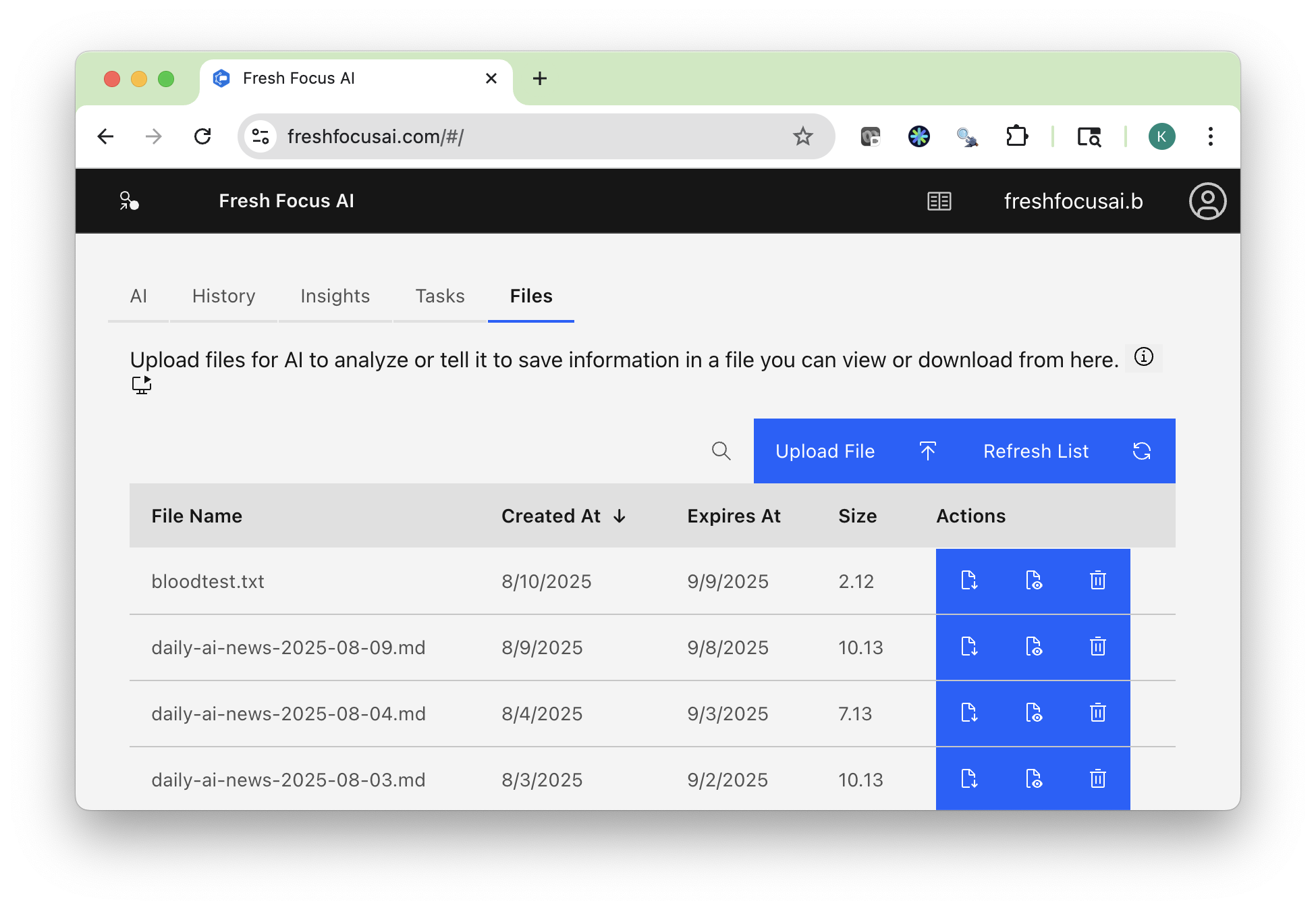
Files Tab
Where your documents meet the AI. Upload reports, notes, datasets, or exports—and turn them into insights you can read, share, or automate.
3-Minute Tour
A quick walk-through of uploading, previewing, asking questions about files, and exporting to integrations.
Quick start
- Open Files from the top navigation.
- Click Upload and select one or more files.
- Use Preview to skim contents instantly.
- Ask the AI a question about any file (see examples below).
- Download to save locally, or Delete to remove it.
Tip
Prefer descriptive names. Add the date like YYYY-MM-DD_topic.md so versions line up cleanly in History and Tasks.
What you can do here
- Store artifacts from your AI runs (Markdown, HTML) for one-click previewing.
- Upload source material (e.g., PDFs, TXT, CSV) and ask targeted questions.
- Reference files in prompts by name to drive analysis.
- Export results from any tab to Files for archiving and quick viewing.
Upload & supported formats
Fresh Focus AI handles common text-first formats well, and can preview saved artifacts it generates.
Works great
- Markdown (.md)
- Plain text (.txt, .log)
- HTML exports created by the app (.html)
- CSV/TSV data tables (.csv, .tsv)
Usually fine (content extracted as text; formatting may vary)
- Office docs (.docx, .xlsx) after conversion to text
Note
Very large or graphics-heavy files may be truncated in Preview. You can still ask the AI to analyze them—mention what to prioritize.
Preview, Download, Delete
- Preview opens an inline viewer for quick reading of Markdown/HTML/Text and a text view for CSV/TSV.
- Download retrieves the original file unchanged.
- Delete removes the file from Files immediately.
Deletion is permanent
Deleting a file removes it from Preview and from future AI analyses. Keep exported Markdown copies if you want a durable archive.
Ask the AI about a file
Reference files directly in your prompt. You can quote the name exactly, or use the file picker where available.
Examples
Read my file `bloodtest.txt`. Explain abnormal vs normal results, give lifestyle recommendations,
and list follow-ups to discuss with my doctor.
Open my file `Quarterly_Report_2025Q2.html`. Summarize revenue, margins, and top risks in 120 words.
Provide a 5-bullet board slide outline.
From the file `meeting_notes_2025-08-01.md` create action items with owners and due dates.
Return as a Markdown checklist and a CSV table.
Tip
Be explicit about output format (Markdown/HTML/CSV) and audience (executive, technical, personal). The AI will format accordingly and can save the result back to Files.
Save outputs to Files
From the AI or Tasks tabs, ask to export results here for fast previewing.
Examples
Save this analysis to **Files** as Markdown named `2025-08-10_ai-news-digest.md`.
Also create an HTML version.
Append today’s summary to `worklog.md` in Files. If the file doesn’t exist, create it.
See Integrations to also publish to Google Drive (HTML), Evernote (ENML), Email, or SMS.
Example workflow: lab report (health) ✚
- Upload
bloodtest.txt. - Ask:
"Read
bloodtest.txt. Explain results in plain English. Identify abnormal vs normal.
Recommend daily habits and follow-up labs to discuss with my doctor." - The AI returns: Abnormal Results, Normal Results, Key Concerns, Recommendations, Follow-ups.
- Ask a follow-up:
"I take chlorthalidone. Could this affect potassium? Recommend immediate next steps and questions for my doctor."
- Export the answer: Save as Markdown to Files, HTML to Drive, and Email the full brief.
Warning
The AI provides educational information and is not a medical diagnosis. Always consult your clinician before changing medication or treatment.
Naming, versions, and structure
- Use a naming scheme like
YYYY-MM-DD_topic.ext(e.g.,2025-08-10_market-brief.md). - Ask the AI to include the date in saved filenames.
- For recurring outputs, keep one folder for each theme (e.g., Market Briefs, Project Notes).
From Files → Tasks
When a file becomes a repeating workflow, jump to Tasks:
Turn the latest `2025-08-*.md` market briefs in Files into a weekly report every Monday 7:30 ET.
Combine the last 7 days, output HTML to Drive, Markdown to Files, and email me the full brief.
Privacy & security
- Files you upload are visible only to you.
- You control what’s retained and what is deleted.
- Exports to Email/Drive/Evernote/SMS happen only if you authorize those integrations.
See Integrations for access scopes and setup.
Troubleshooting
I can’t preview my file.
- Try downloading—if it opens locally, convert to Markdown/HTML and re-upload.
- For PDFs with heavy graphics, ask the AI to extract text-only sections.
“File not found” in a prompt.
- Check the exact filename (including extension and date).
- Re-upload or use the file picker.
Encoding looks wrong (weird characters).
- Re-save as UTF-8 and upload again.
Big CSV renders slowly.
- Ask for a summarized table (columns + row count), then filter by the columns you need.
Related pages
- AI (Main Tab) — prompting and tool use
- History — saved threads that can generate insights
- Insights — proactive ideas based on your activity
- Integrations — Email, SMS, Google Drive, Evernote, GitHub
- Tasks — schedule recurring exports and chained workflows