AI Tab
Your all-in-one chat workspace: 30+ models, side-by-side answers, and deep integrations with your tools and data.
2-Minute Tour
Watch a quick overview of the AI tab—model picker, tools, and tips to get great results.
Quick start
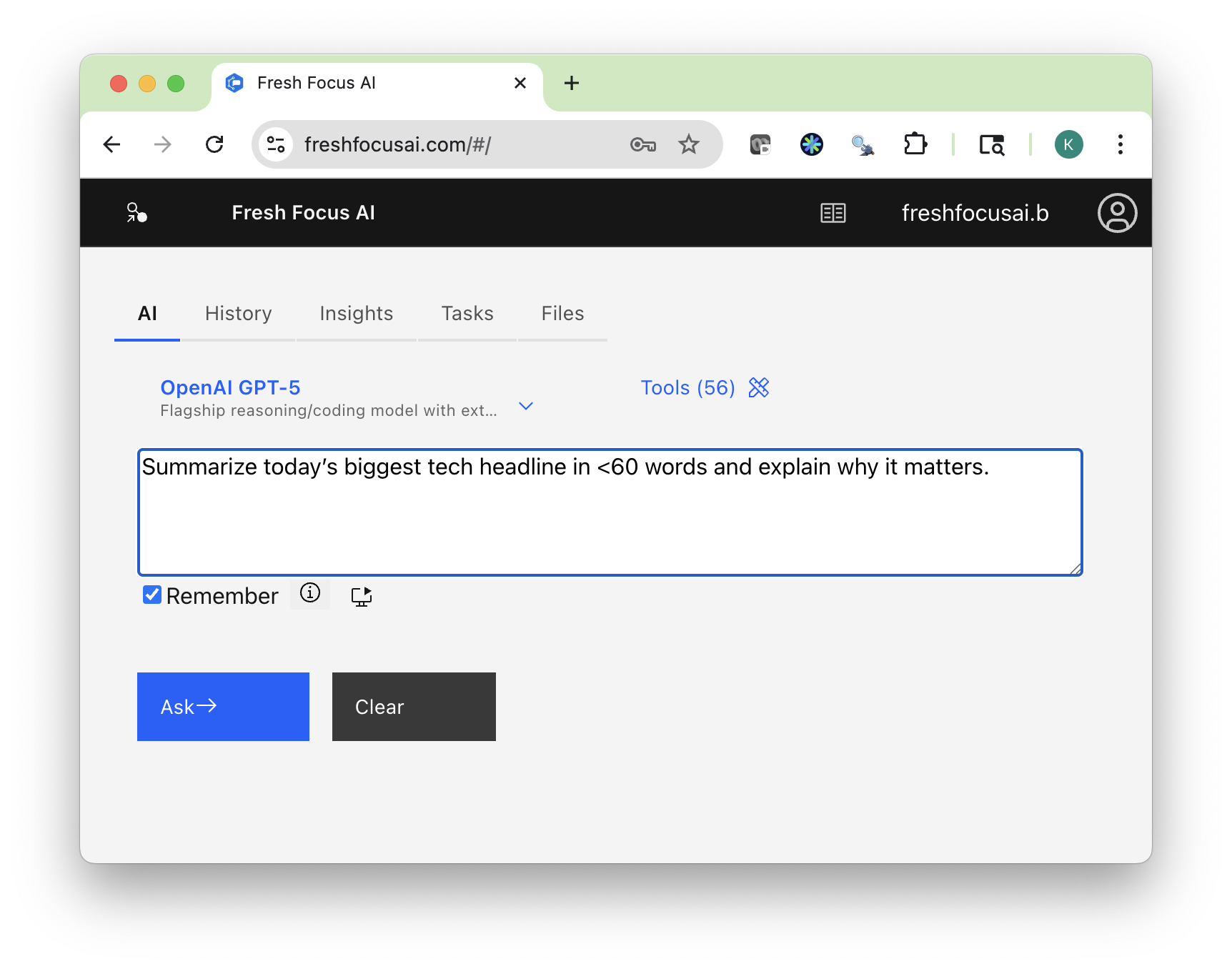
- Choose a model from the selector (speed, creativity, or deep reasoning).
- Open Tools and pick what the model may use (Search, Files, Email, Drive, Evernote, SMS, MCP tools, etc.).
- Write a clear prompt (task → context → constraints → output format).
Tip
For fast summaries, pick a sprinter. For sourced analysis and planning, pick a researcher. For brainstorming or naming, pick a creator.
Model selection
Fresh Focus AI supports over thirty models across top providers. The selector highlights each model’s strengths so you can match the engine to the job.
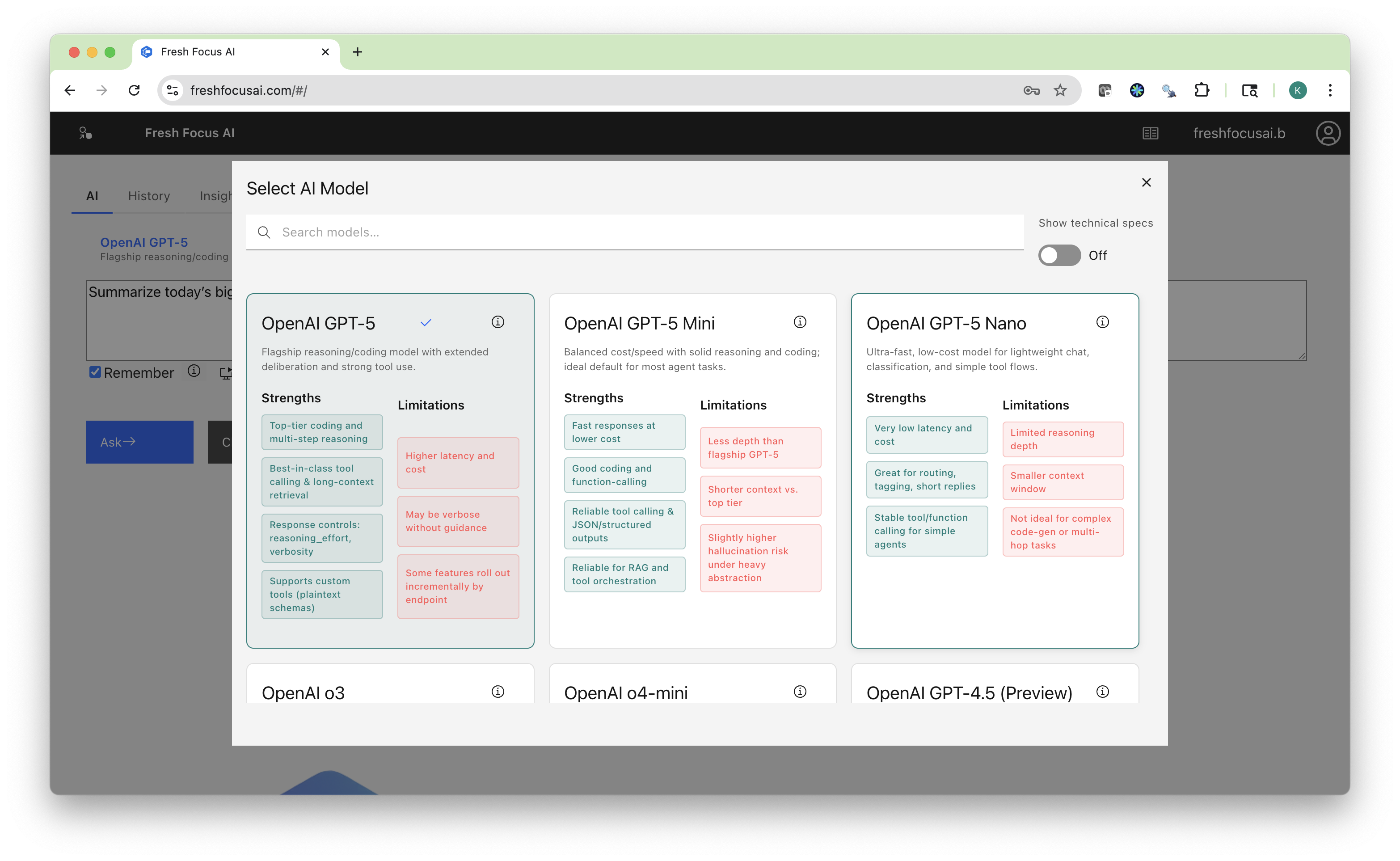
- Researchers (reasoning-heavy): best for sourced briefs, trade-offs, stepwise plans.
- Sprinters (fast): best for summaries, checklists, short transforms.
- Creators (open-ended/creative): best for campaigns, outlines, names, and concepting.
Note
You can switch models mid-conversation. The new model receives the same thread context so you can keep going without restating anything.
Tools (turn on what the AI can use)
Before you run a prompt, open Tools and enable what the model may call:
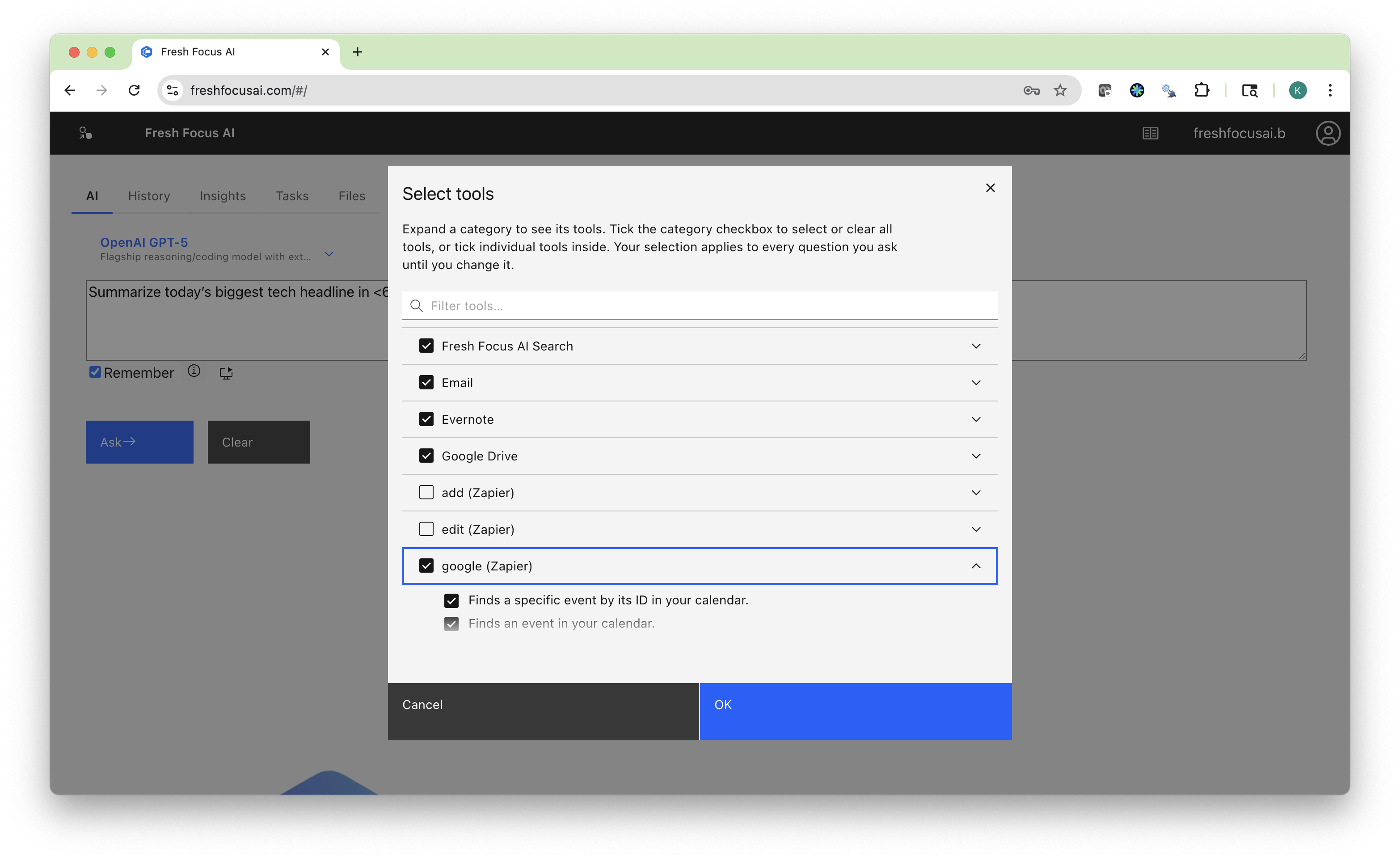
- Search — multi-engine web lookups with de-duplication.
- Files — read your uploaded files and write Markdown/HTML artifacts back.
- Email / SMS — deliver full reports or short summaries to your inbox/phone.
- Google Drive / Evernote / GitHub — publish reports where you work.
- MCP tools — third-party capabilities (e.g., Google Calendar & Sheets via Zapier).
You can select tools in bulk or individually. The active set applies to the current prompt/thread.
Tip
Be intentional. If you only need analysis of a single file, enable Files and turn off external connectors to keep the run focused and fast.
Prompting patterns (copy & adapt)
Use this structure: Task + Context + Constraints + Output format (+ Sources).
Fast tech brief (speed)
Summarize today’s biggest AI headline in ≤60 words and explain why it matters for product strategy.
Return 2 bullets: “What happened”, “Why it matters”. Include one link.
Deeper analysis (reasoning)
Evaluate 3 competing approaches to retrieval for a 1M-token context application.
Compare cost, latency, and quality. Include assumptions and 3 citations.
Format as a table + key takeaways.
Use my file
Read `Quarterly_Report_2025Q2.html`. Extract revenue, gross margin, and top 3 risks.
Return a 120-word brief and a CSV table I can paste into Sheets.
Use integrations (MCP + Drive + Email)
Create a 1-page “Weekly Review” from this thread. Save HTML to Google Drive,
email me the full brief, and (if connected) add a Friday 4:00–4:30 PM Google Calendar event
titled “Weekly Review” with the Drive link.
Continue, clear, and resume
- Continue: Ask follow-ups—your preferences (e.g., “≤60 words + business impact”) carry forward.
- Clear: Start a fresh thread when you change topics.
- Resume: Open the History tab to reopen any thread, compare past answers, or pick up work exactly where you left off.
See History for details.
Export & share
From the AI tab you can tell the AI to export the current result to:
- Files — Markdown/HTML for instant preview and archiving.
- Email — a formatted brief to your inbox.
- Google Drive — HTML with links preserved.
- Evernote — ENML in your chosen notebook.
- SMS — a concise, 2-line summary to your phone.
For setup, visit Integrations. To automate, see Tasks.
Tips for higher-quality answers
- Be specific about audience, length, structure, and must-include sections.
- Show an example if you have one. Ask “match this style.”
- Request sources & assumptions for research and analysis.
- Constrain the format (table/checklist/email draft/HTML/Markdown).
- Name your files and ask the AI to save exports with
YYYY-MM-DDin the filename.
Troubleshooting
The model ignored a tool I enabled.
- Re-run with a line like: “Use the Search tool to find sources before answering.”
- Ensure only the needed tools are enabled to reduce ambiguity.
Answers feel generic.
- Add constraints and ask for assumptions, sources, or a compare & contrast table.
- Try a researcher model for depth.
It’s slow.
- Switch to a sprinter and trim the scope (≤150 words, 3 bullets, 1 link).
- Disable extra tools you don’t need.
I want to take this further.
- Save the thread, open Insights for proactive ideas based on your History, or convert the flow into a scheduled workflow in Tasks.
Privacy & safety
- Your conversations and tool calls are saved to History under your account.
- Exports (Email/Drive/Evernote/SMS) occur only when you authorize those integrations.
- Health, legal, or financial content is for informational purposes only—verify with professionals.
Related pages
- History — reopen threads, compare models, and resume.
- Insights — automatic ideas from your saved work.
- Files — upload and preview artifacts; reference them in prompts.
- Integrations — connect Email, Drive, Evernote, SMS, GitHub, MCP.
- Tasks — automate research and reports on a schedule.