History Tab
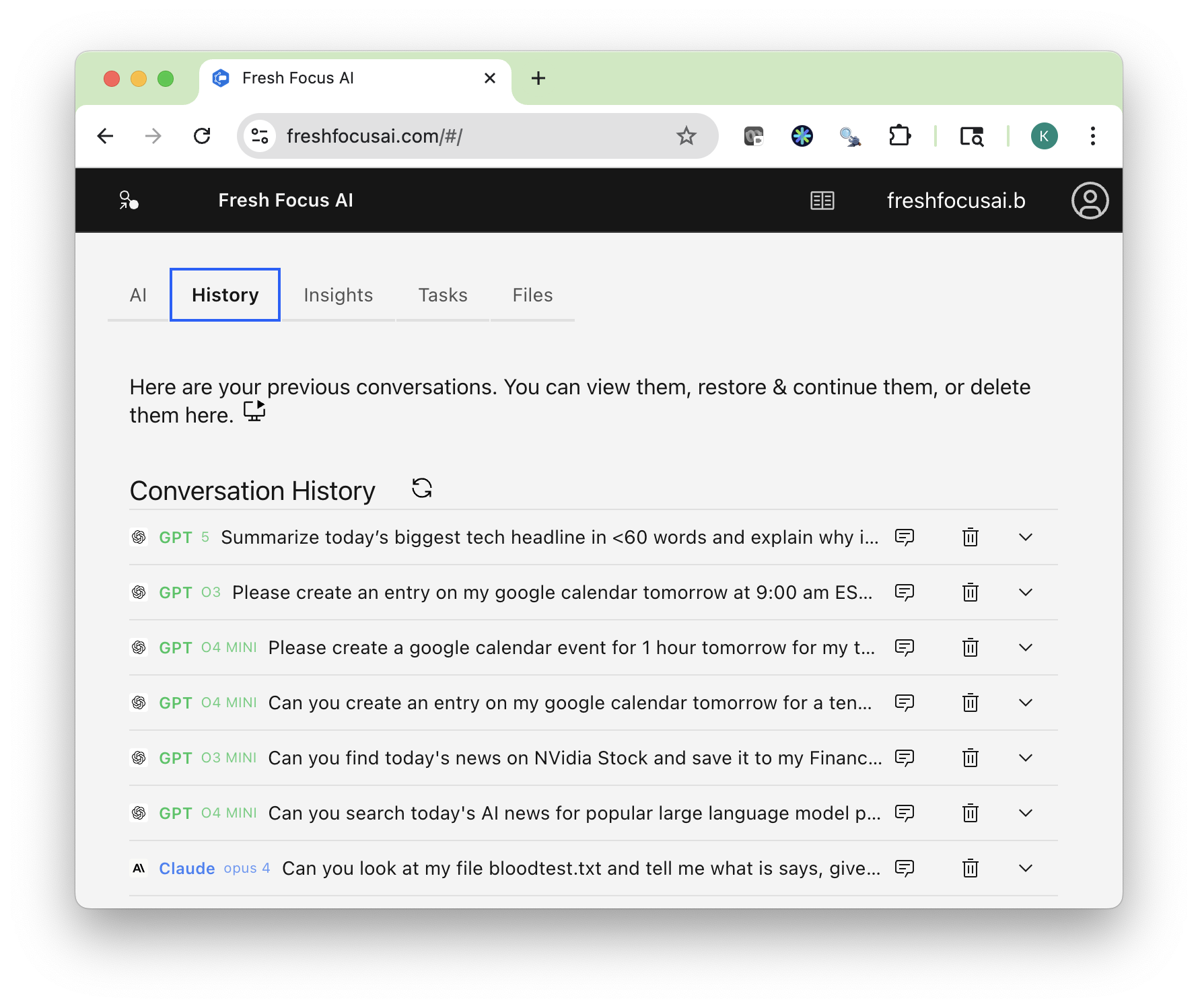
Your conversation library. Reopen any thread, compare model answers side-by-side, and continue exactly where you left off—context and tool calls included.
1-Minute Tour
A quick walkthrough of restoring, comparing, and resuming threads from History.
Quick start
- Open History from the top navigation.
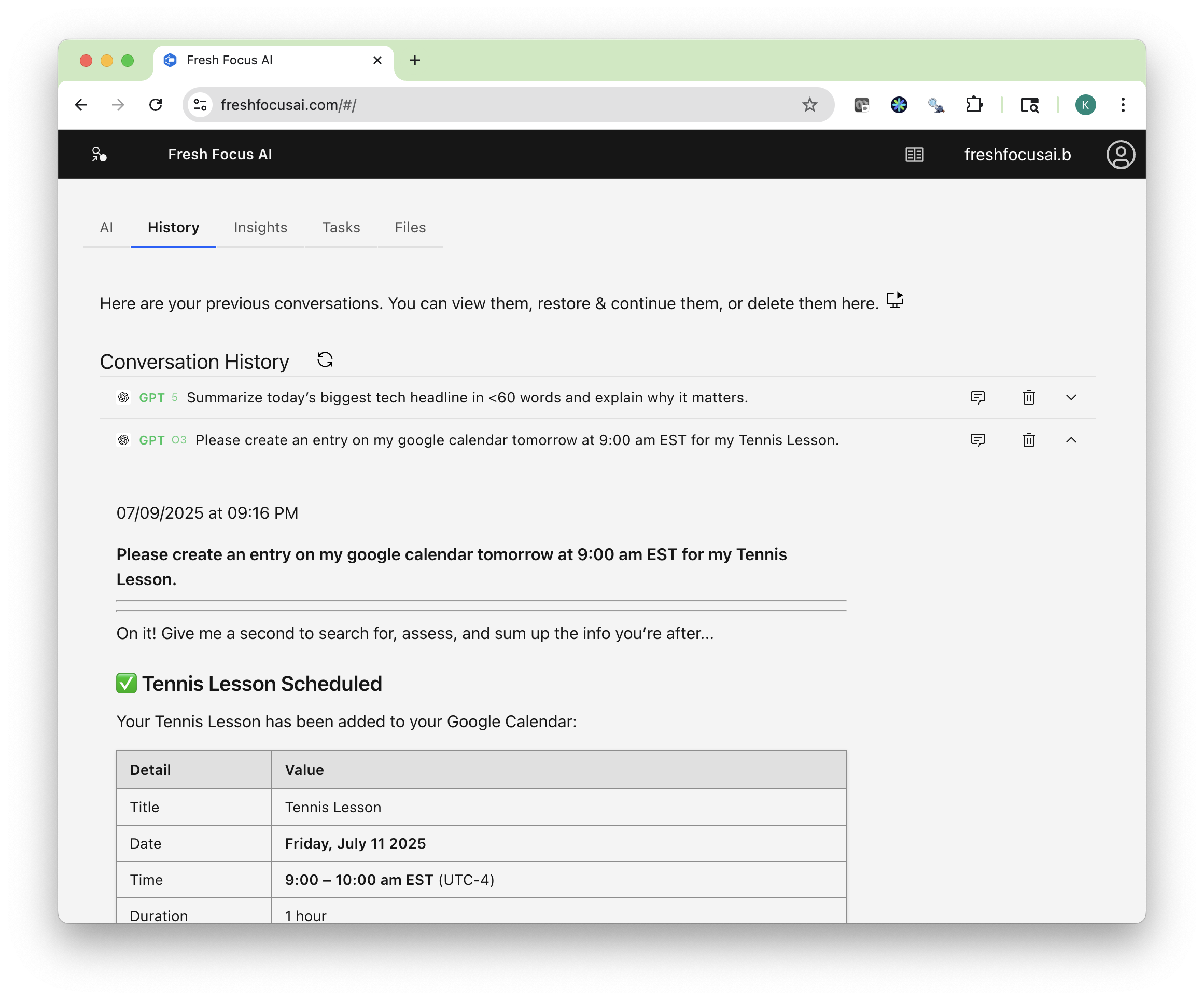
- Click a thread title to preview the latest exchange.
- Use the action icons:
- Restore — restore the thread to the AI tab (full context).
- Delete — permanently remove a thread.
- Back on the AI tab, you can switch models mid-conversation and re-ask with the same context.
Best practice
Start a new thread when you change topics. It keeps context sharp and makes comparisons cleaner.
What’s saved here
- Your prompts and the model’s replies
- The model used and key settings for each turn
(Use this to understand why one answer differed from another.)
Compare answers (side-by-side)
When you want confidence—not guesswork—compare models on the same prompt.
How to: 1. Find the thread in History for each model. 2. Expand the answers to compare them.
Note
Comparisons show the exact context each model saw.
Resume & continue (with or without switching models)
Every thread is a living workspace.
- Click ▶ Resume to send the full conversation (and tool state) back to the AI tab.
- Ask a follow-up—the model will use prior context.
- Switch models at any time and re-ask; the new model receives the same conversation history so you can continue seamlessly.
Example flow:
Resume the “Tech Headlines” thread → switch from o3-mini to Claude → re-ask for a sub-60-word update on Canada → get a deeper, sourced brief without restating your preferences.
Organize your library
- Delete a thread: click 🗑 Delete.
Permanent deletion
Deleting a thread removes it from History. It will also no longer inform future Insights.
Export or share outcomes
Want to keep a great answer outside the app?
- From the AI tab (after resuming), use your connected tools to:
- Save to Files as Markdown/HTML for quick previewing
- Send to Email for a formatted brief
- Save to Google Drive (HTML) or Evernote (ENML)
- Text yourself (SMS) a short summary with links
See Integrations and Files for setup and workflows.
How History powers Insights
The Insights tab uses your saved conversations to propose proactive ideas and utilities tailored to your interests.
- Each visit can generate a fresh, contextual Insight.
- Click Create Insight Now to request another on demand.
- Chat in the Insights panel to steer future suggestions (e.g., “Focus on public speaking nerves.”).
Tip
If you want Insights that are laser-focused, keep your threads tidy and topic-specific. That clarity improves what the system surfaces next time.
Common workflows
1) Validate which model to trust
- Ask once on the AI tab.
- In History, open the thread → ⇄ Compare with 2–3 models.
- Pick the best and ▶ Resume with that model going forward.
2) Turn a great answer into a brief you can share
- ▶ Resume the thread.
- Ask: “Format this as an email/HTML/Markdown brief.”
- Use Email / Drive / Files / Evernote actions to deliver it.
3) Keep a recurring topic current
- ▶ Resume a recurring topic (e.g., “Weekly AI news”).
- Ask for the latest with the same constraints.
- If you want it automated, move to Tasks and create a periodic workflow.
Data & privacy
- Your History belongs to you.
- You control what stays (rename, organize) and what goes (delete).
- Deleted threads won’t be used to generate future Insights.
For file handling particulars, see Files.
Troubleshooting
I can’t find a conversation I just had.
- Check that you’re logged into the same account.
- Clear any active search query.
- Refresh the page; very long chats may need a moment to index.
I resumed a thread but the model didn’t recall everything.
- Extremely long threads may hit practical context limits. Ask:
“Summarize the key points so far,” then continue with the summary pinned at the end.
Comparisons look uneven.
- Verify each reply’s tool turns—some models may have performed extra searches or used different tools.
I deleted something by accident. Can I restore it?
- Deletions are permanent in the app. If you exported to Files, Drive, or Evernote, retrieve the content there.
Related pages
- Getting Started – first steps and model selection
- AI (Main Tab) – tools, prompts, and model switching
- Insights – how automatic suggestions are generated
- Files – upload, preview, download, and deletion
- Integrations – email, SMS, Google Drive, Evernote, GitHub
- Tasks – automate research and reports on a schedule