Insights Tab
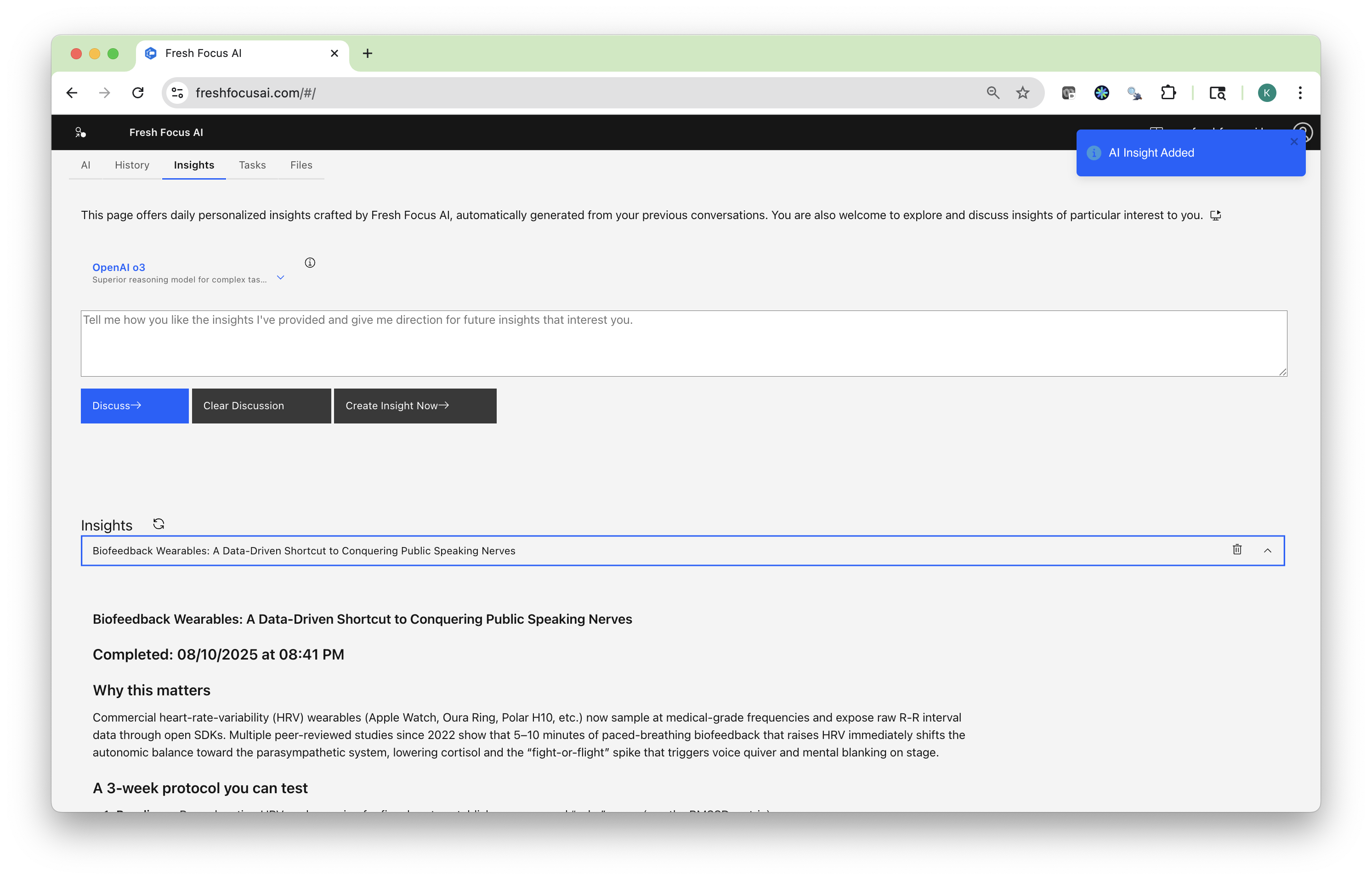
Your idea engine. Every visit, Fresh Focus AI reviews your recent History and proposes a tailored, ready-to-use insight. Ask for more on demand, steer the focus with a quick chat, and export the result to your favorite tools.
2-Minute Tour
A quick walkthrough of the Insights tab—how auto-suggestions are generated and how to steer, regenerate, and export.
Quick start
- Open Insights in the top navigation.
- Review the auto-generated insight card.
- Click Create Insight Now for another idea.
- Use the model selector to pick the engine that fits (research-heavy, creative, fast).
- Chat in the “Guide future insights” panel to shape what shows up next.
- Use the Export buttons to save to Files, Email, Google Drive, Evernote, or send a quick SMS summary.
Two great defaults
- For deep, sourced briefs, choose a reasoning-focused model.
- For fast ideation or outlines, choose a speed/creative model.
What powers Insights
- Your History: Questions, answers, and tool calls from saved threads.
- Recent emphasis: Newer topics are weighted more—visit Insights after key work to get fresh recommendations.
- Your guidance: Anything you type in the Insights chat steers future suggestions.
Note
Deleting a conversation in History removes it from consideration for future insights.
Anatomy of an Insight card
An Insight is designed to be immediately actionable. Typical sections:
- Title — the concise promise of value
- Why it matters — business or personal impact in plain language
- What to do next — steps, checklists, or a repeatable mini-playbook
- Sources / inputs — when relevant, the signals used (e.g., recent threads, tool outputs)
Steer future insights (in-panel chat)
Use the chat to set focus, scope, or constraints. Examples:
- “Focus on public speaking tips for anxious presenters.”
- “Prioritize AI market roundups with links and a 2-minute read time.”
- “Ignore hymn-planning; emphasize product marketing instead.”
- “Give me weekly ideas that build toward a 10-page playbook by month-end.”
Tip
The more specific your steering, the sharper the next card. Mention goals, audience, and desired format (brief, checklist, template, utility).
Choosing the right model
Just like on the AI tab, you can pick any supported model before generating.
- Researchers (reasoning-heavy): better for sourced briefs, trade-offs, and multi-step plans
- Creators (open-ended/creative): better for campaigns, names, outlines, concepting
- Sprinters (fast): great for summaries, checklists, and quick iterations
Switch models, then click Create Insight Now to re-spin the card.
Examples
Public speaking nerves → actionable playbook
- Why it matters: turn anxiety into presence for high-stakes talks
- What to do: rehearsal frameworks, audience hooks, breathing & visualization, cognitive reframing, and a 7-day taper plan
- Export: Email yourself the checklist; SMS a 3-point reminder for day-of
Hymn planning automation (from prior History)
- Why it matters: reduce weekly prep time while keeping pastoral control
- What to do: use two copyright-compliant sources, auto-rank candidates, and stage an approval step
- Export: Save a Markdown template to Files, then create a repeatable Task (see below)
From Insight → repeatable workflow
When an Insight should run regularly (e.g., “Daily AI News Digest” or “Sunday hymn selector”):
- Open Tasks (see Tasks).
- Ask the Tasks AI:
“Turn the latest Insight into a scheduled workflow every weekday at 7:00 AM. Save HTML to Google Drive, Markdown to Files, email the full brief, and SMS a two-line summary.”
- Review the generated steps, then Run once or Schedule it.
Best-practice prompts for better insights
- “Give me a one-page brief with cost/benefit and first 3 steps.”
- “Prioritize credible sources; include links and assumptions.”
- “Format as a checklist I can run in 15 minutes, plus a 2-minute SMS summary.”
- “Propose a lightweight utility (one screen) I could build in a day.”
Organize insights
- Rename the card title for clarity before exporting.
- Regenerate with a different model if you want another lens.
- Archive by deleting the underlying threads in History if the topic is no longer relevant.
Troubleshooting
The card feels generic.
Add steering: who it’s for, constraints (time, budget), and expected output format. Then click Create Insight Now.
It’s off-topic.
Delete or rename unrelated threads in History, then steer with “Focus on X; ignore Y.”
I don’t see new ideas after major work.
Open History and confirm the latest thread is saved, then revisit Insights and regenerate.
I want citations/links.
Ask: “Include sources with links and list assumptions.”
Privacy
- Insights are generated from your saved conversations (and their tool outputs).
- Deleting threads in History removes them from future consideration.
- Exports go only to the destinations you authorize (Email, Drive, Evernote, SMS, Files).
Related pages
- AI (Main Tab) — prompts, tools, and model selection
- History — how prior conversations are saved and compared
- Files — upload and preview saved exports
- Integrations — email, SMS, Drive, Evernote, GitHub
- Tasks — turn a great insight into a scheduled workflow