Integrations
Fresh Focus AI connects directly with the services you already use—so your AI can deliver results where you work. Use built-in connectors for common destinations, or plug in MCP (Model Context Protocol) to add hundreds of third-party tools in minutes.
3-Minute Tour: Files & Integrations
MCP: Connect Powerful Tools in Minutes
Overview
| Service | Mode | Typical Use Case |
|---|---|---|
| Send | Deliver full reports, alerts, or meeting summaries | |
| SMS | Send | Quick updates, alerts, and summaries |
| Google Drive | Read / Write | Store HTML/Markdown reports; ingest docs for AI analysis |
| Evernote | Read / Write | Build a searchable, AI-powered notebook knowledge base |
| AWS S3 | Read / Write | Durable archive of AI outputs and datasets |
| GitHub | Read / Write | Create branches, PRs, or documentation via AI |
| MCP Integrations | Read / Write / Action | Instantly add hundreds of tools from providers like Zapier |
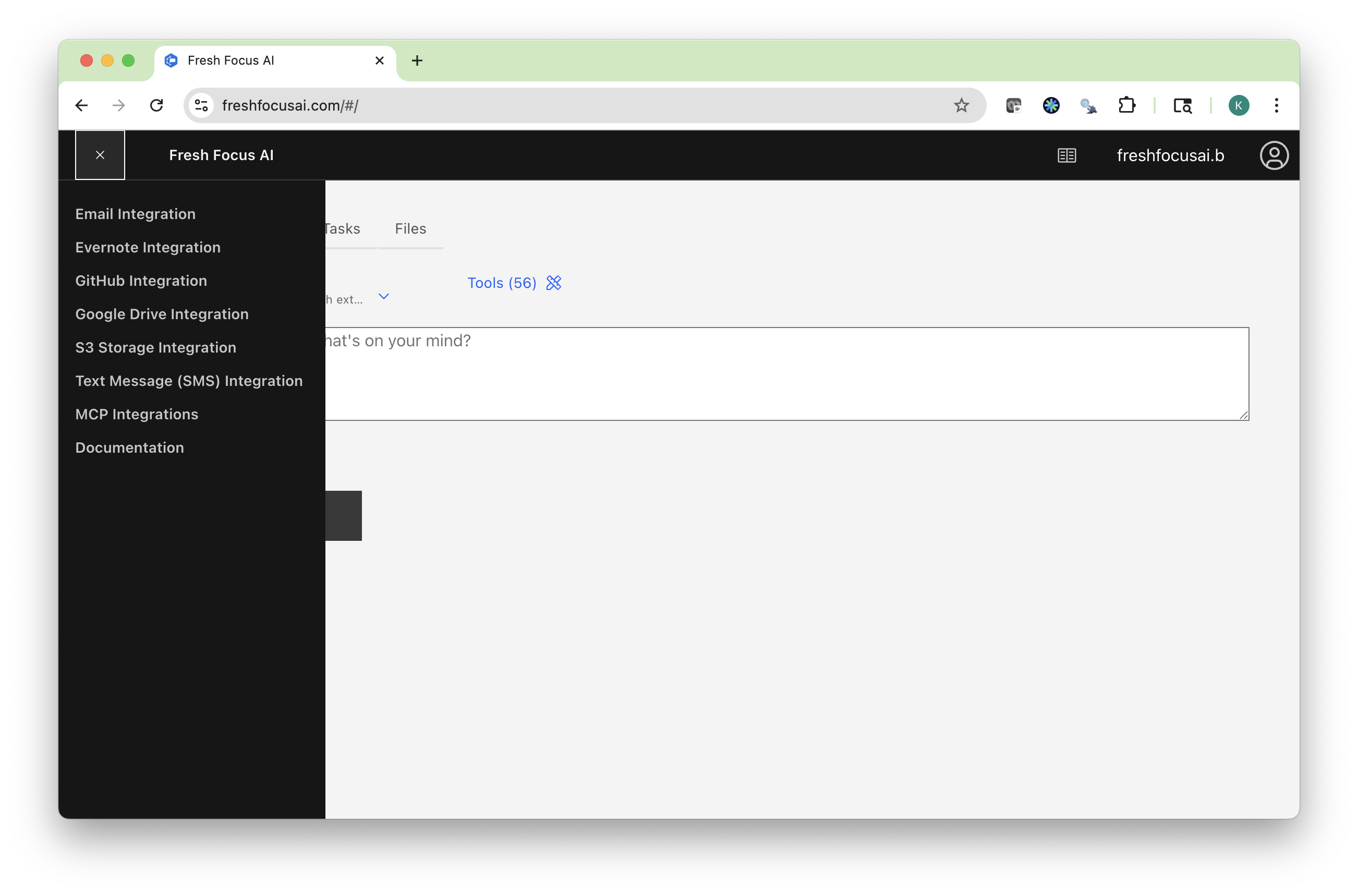
How integrations work
Fresh Focus AI integrates services in two primary ways:
- Built-in connectors — Direct support for Email, SMS, Google Drive, Evernote, AWS S3, and GitHub. These usually require a quick OAuth or API key setup.
- MCP connectors — A universal way to bring in tools from third-party providers like Zapier (Google Calendar, Sheets, Trello, Notion, Jira, and many more). You choose which tools are available—no custom code required.
Tip
You can enable/disable connectors per thread by selecting tools on the AI tab. Tool usage is recorded in History with timestamps.
Setup in 60 seconds (most services)
- Open Integrations in the left navigation.
- Click a service → select Connect.
- Complete OAuth or paste your API key.
- (Optional) Choose read vs write access where offered.
- Confirm. Your connector appears in the Tools menu on the AI tab.
Native integrations
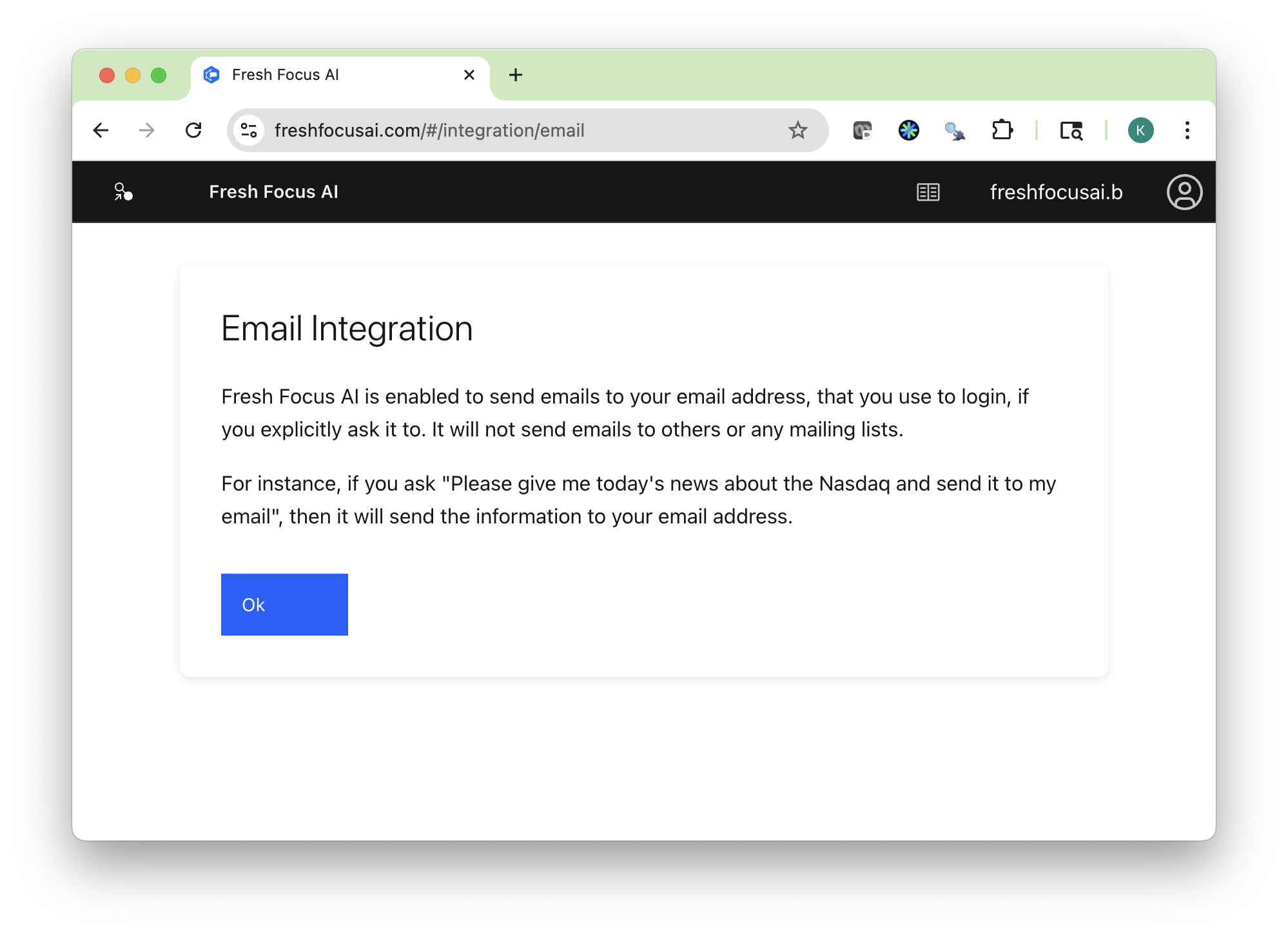
- Purpose: Send AI results straight to your inbox.
- Best for: Full briefs, formatted reports, meeting notes.
- Example: “Email me today’s AI news digest as HTML.”
- Setup: Active for all users once you verify your email.
SMS
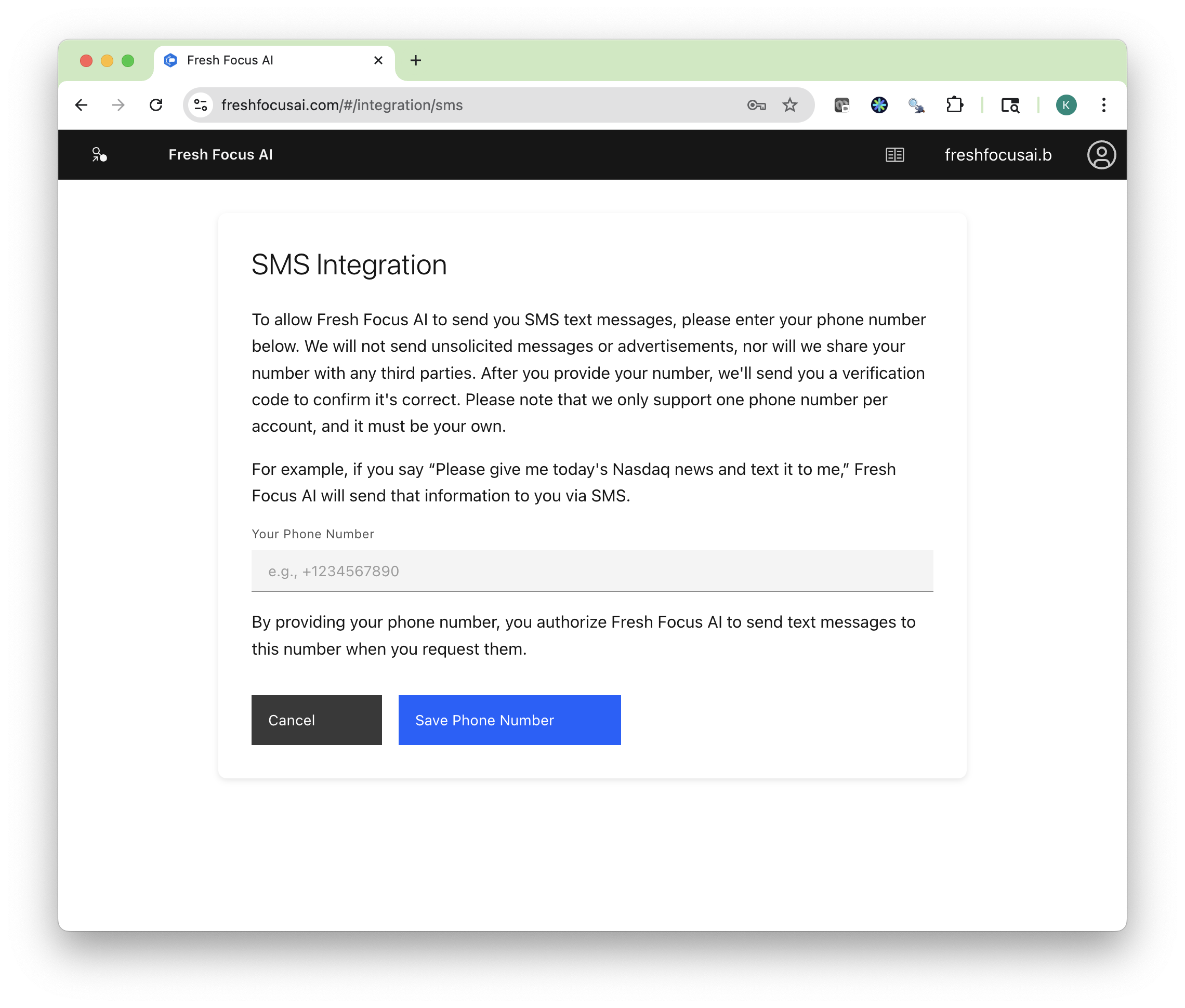
- Purpose: Receive concise updates and alerts.
- Best for: Market pings, reminders, quick links.
- Example: “Text me a 2-line market update at 9 AM.”
- Setup: Add your phone number in Settings → SMS Integration.
Google Drive
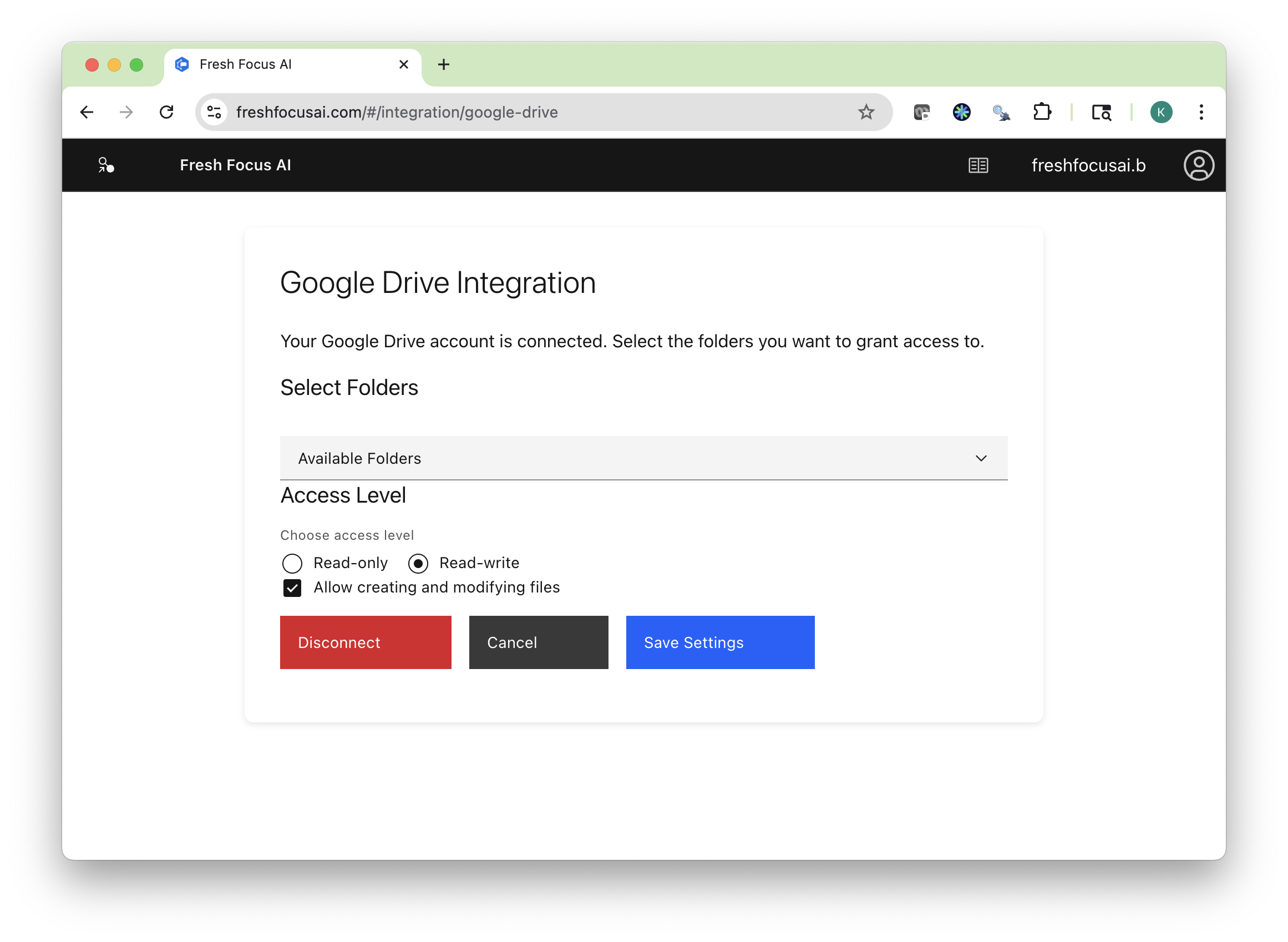
- Purpose: Store AI-generated files (HTML/Markdown) or analyze your Drive docs.
- Read mode: AI can search/reference permitted files/folders.
- Write mode: AI saves new reports directly to Drive.
- Example workflow: Gather news → save an HTML digest to
/Reports/DailyBriefing.html→ open in Drive viewer with links preserved. - Setup: Integrations → Google Drive → Connect and grant requested scopes.
Pro tip: Export both HTML (for Drive) and Markdown (for Files tab preview).
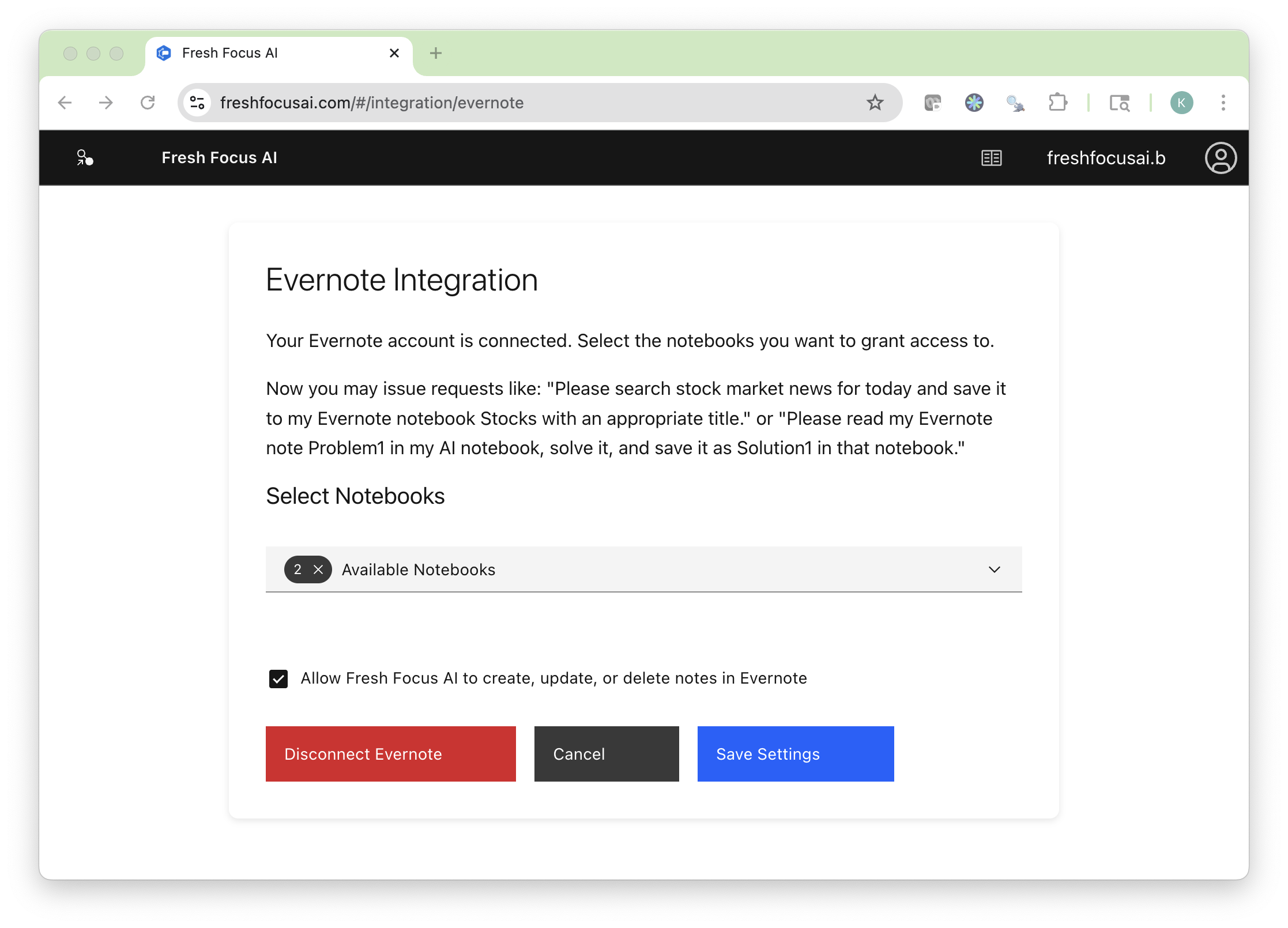
Evernote
- Purpose: Keep structured research and notes in notebooks you already use.
- Granular access: Limit to specific notebooks (e.g., “AI”, “Finance”) and set an access duration (1 day → 1 year).
- Example: “Save this weekly research brief to Evernote in the AI notebook.”
- Setup: Integrations → Evernote → Connect, choose notebooks & duration.
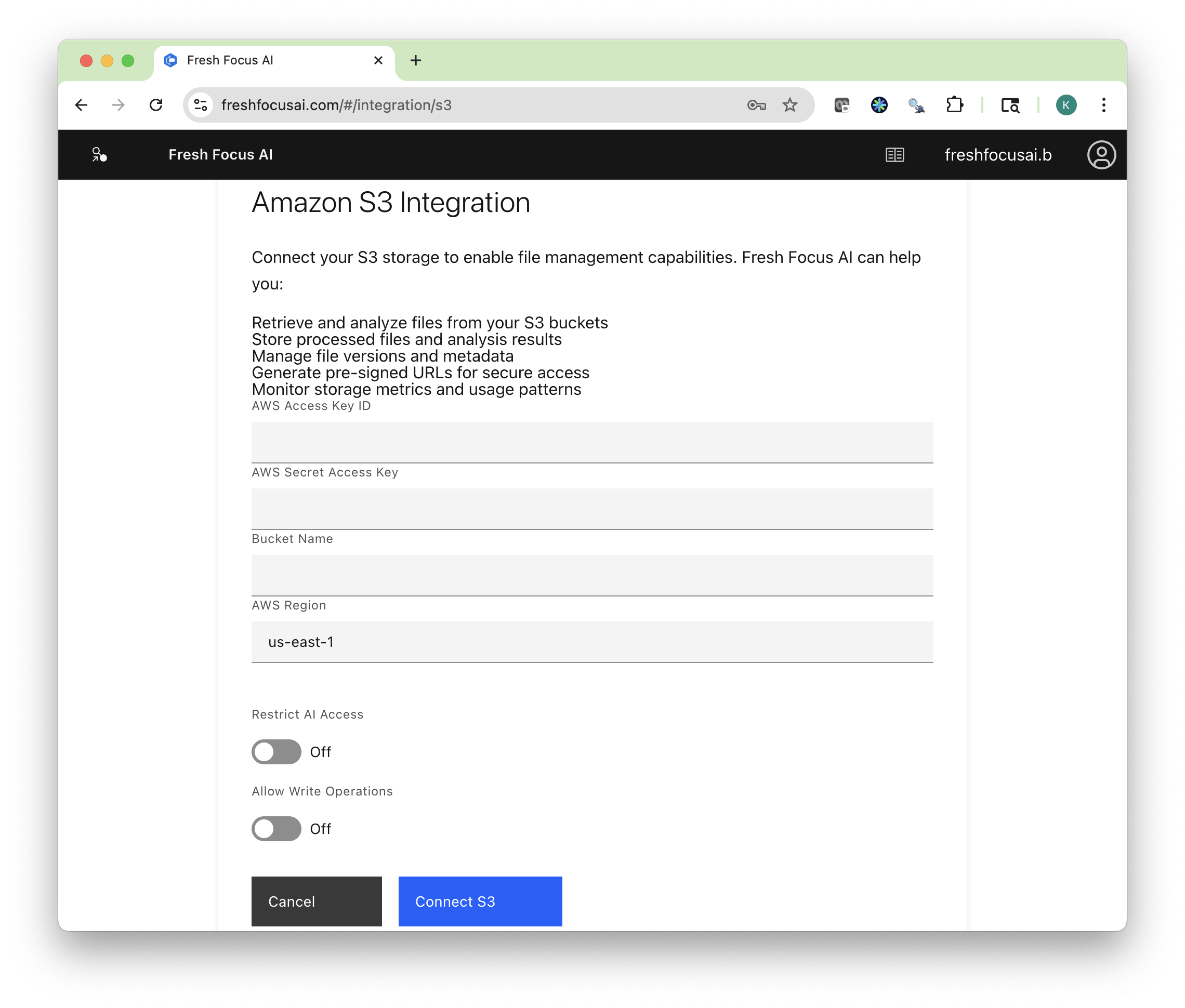
AWS S3
- Purpose: Archive outputs in durable cloud storage; keep long-term datasets.
- Example: Save daily Markdown briefs to
s3://my-bucket/briefs/2025-08-10.md. - Setup: Integrations → AWS S3 and provide bucket credentials.
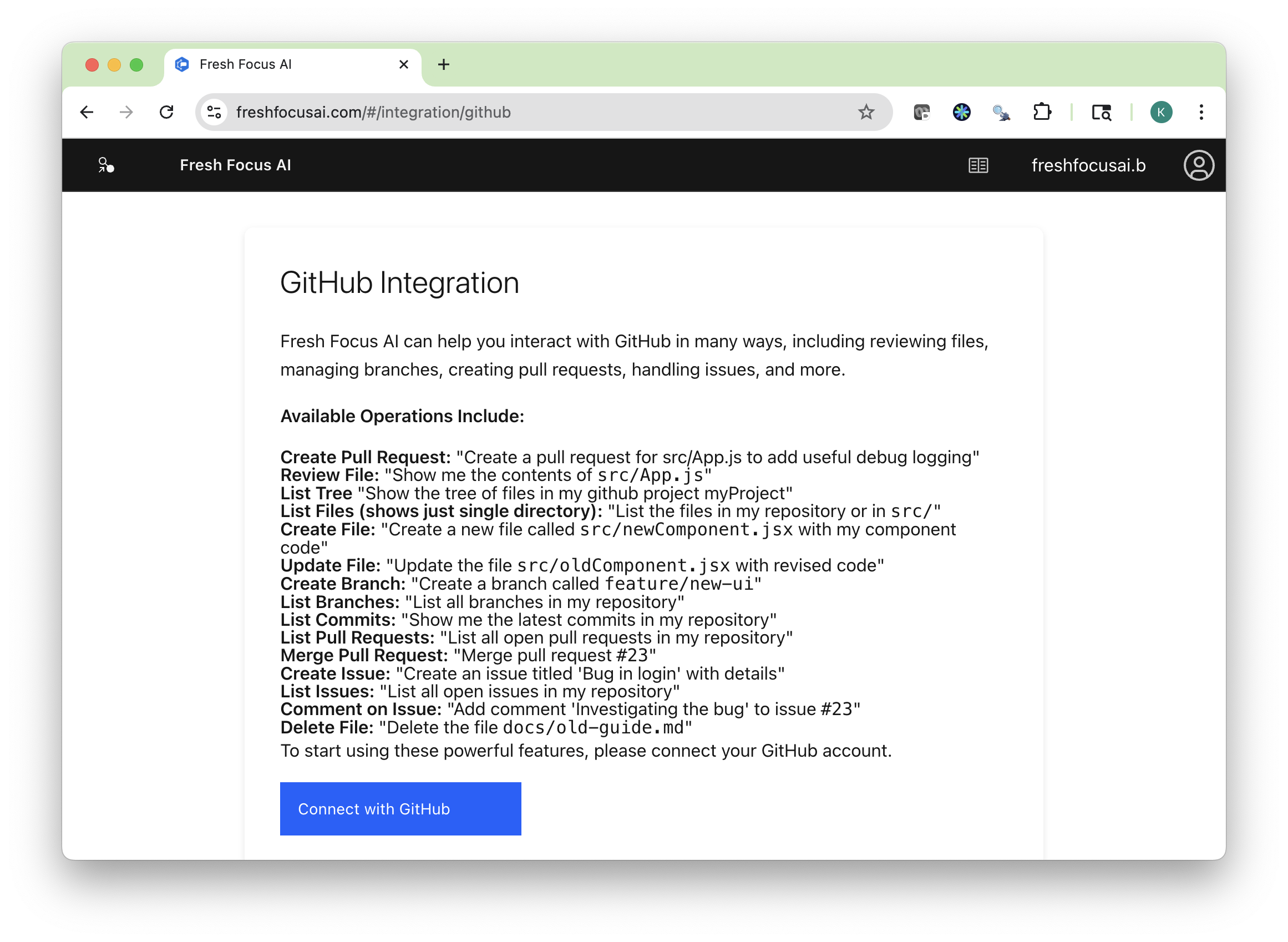
GitHub
- Purpose: Let the AI generate or edit code/docs and open PRs.
- Examples: “Draft a README and open a PR”, “Update CHANGELOG for v1.2”.
- Setup: Integrations → GitHub → Connect; grant repo access as needed.
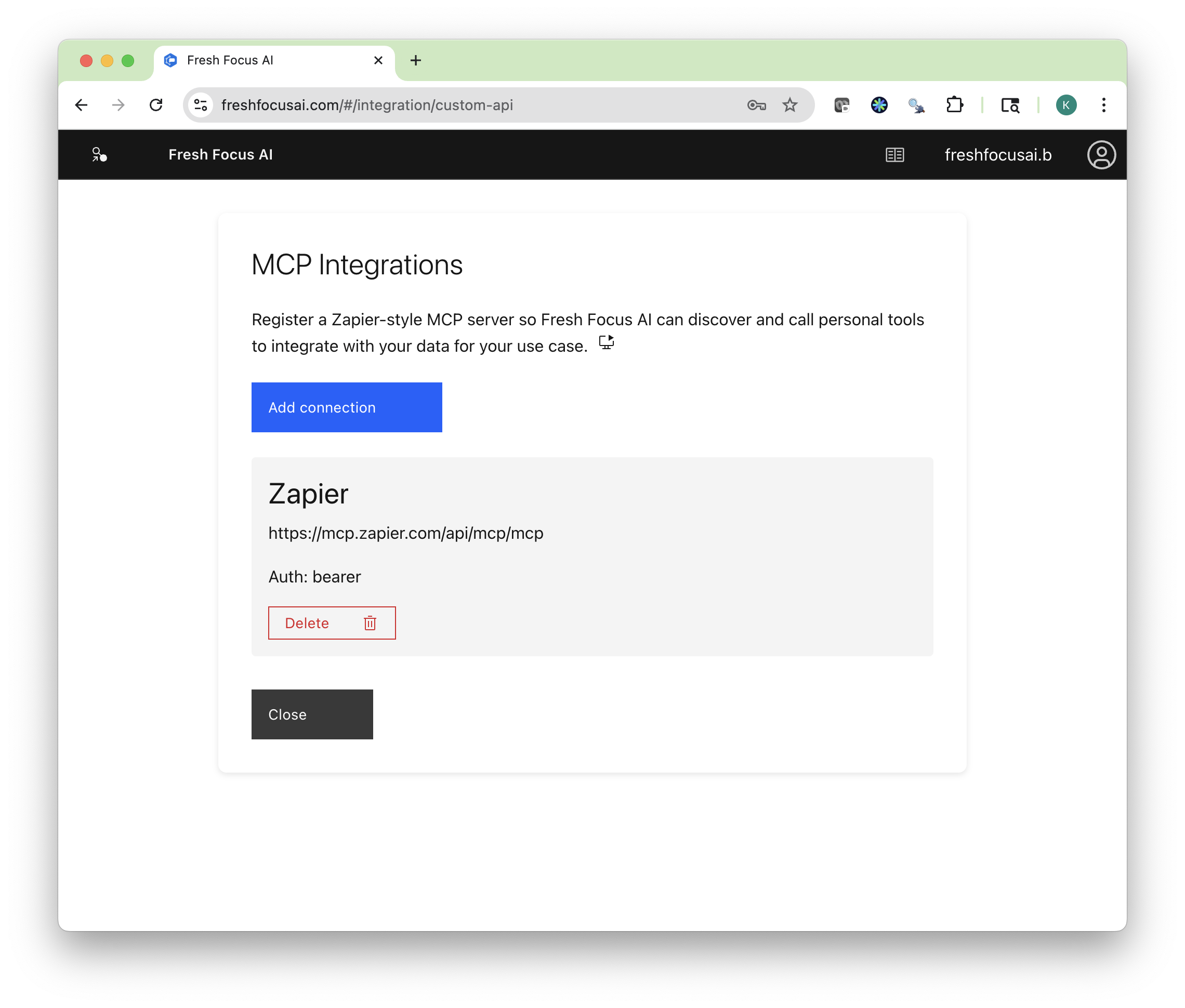
MCP integrations (Model Context Protocol)
MCP is the fastest way to extend your AI’s toolset, bringing in ready-made actions from providers like Zapier.
Why MCP - Scale: Access thousands of tools (Calendar, Sheets, Trello, Notion, Jira, etc.). - Granular control: Choose specific tools (e.g., “Create Event” but not “Delete Event”). - Security: Auth happens with the provider; you manage tokens/permissions there.
Example: connect Zapier MCP (step-by-step)
- Create a free Zapier account (Google sign-in is the fastest).
- Go to mcp.zapier.com → Create New Server.
- Add Tools:
- Add Google Calendar tools (create, update, search).
- Add Google Sheets tools (read, write, update).
- Approve Google OAuth for each service.
- Copy the Connection URL from Zapier.
- In Fresh Focus AI → Integrations → MCP Integrations → Add Connection.
- Paste the URL, name it (e.g., “Zapier”), and click Next.
- Copy the Bearer Token (API Key) from Zapier → paste into Fresh Focus AI → Save.
- Your selected tools appear in the Tools menu alongside native ones.
- Use it:
Create a Google Calendar event tomorrow at 9:00 AM for 1 hour titled “Tennis Lesson”.
Note
You can import additional Zapier tools later—just update the MCP server, then refresh tools in Fresh Focus AI.
Using integrations in prompts
Save to Drive & Email
Summarize this thread as a 1-page HTML brief, save to Google Drive in /Reports/,
and email me the full report. Include today’s date in the filename (YYYY-MM-DD).
Evernote note + SMS
Create a Markdown recap titled “Weekly Review”. Save to Evernote in the AI notebook,
then text me a 2-line summary with the Evernote link.
S3 archive
Export the final Markdown and upload to s3://company-archive/briefs/ with today’s date.
GitHub PR
Generate a README draft for this utility and open a PR on branch docs/readme-draft.
Integrations in action: multi-channel workflow
Goal: Daily Market Briefing
Steps:
1) Fetch Dow, Nasdaq, S&P prices.
2) Gather related news and Reddit sentiment.
3) Save Markdown locally (Files tab).
4) Save HTML to Google Drive.
5) Create an Evernote note in the “Finance” notebook.
6) Email the full HTML briefing.
7) SMS a 2-line summary with the Drive/Evernote link.Result: A deep morning brief across channels—ready before your first coffee.
Permissions, security & data flow
- You choose which services to connect and whether access is read or write.
- Tool calls are logged in History with timestamps.
- Revoking access: disconnect in Integrations or at the provider’s security page.
- Exports are sent only when you explicitly invoke them (manually or via a scheduled Task).
Warning
Be cautious granting write access to production repos/buckets. Start with a test repo/bucket and promote once you’re satisfied with outputs.
Troubleshooting
Drive/Evernote item didn’t appear
- Reconnect the integration and re-run. Confirm the target folder/notebook exists.
“Permission denied” on S3/GitHub
- Check credentials and scopes; verify the bucket/repo name and path/branch.
MCP tools not showing
- Refresh the MCP connection in Integrations; confirm the server has tools enabled.
SMS not delivered
- Verify your number in Settings → SMS Integration and check carrier filters by shortening the message.
Next steps
- Automate multi-channel delivery in Tasks & Automation.
- Learn how tool usage is captured in History.
- See how Insights uses your saved work in Insights.
- Manage local artifacts in Files.